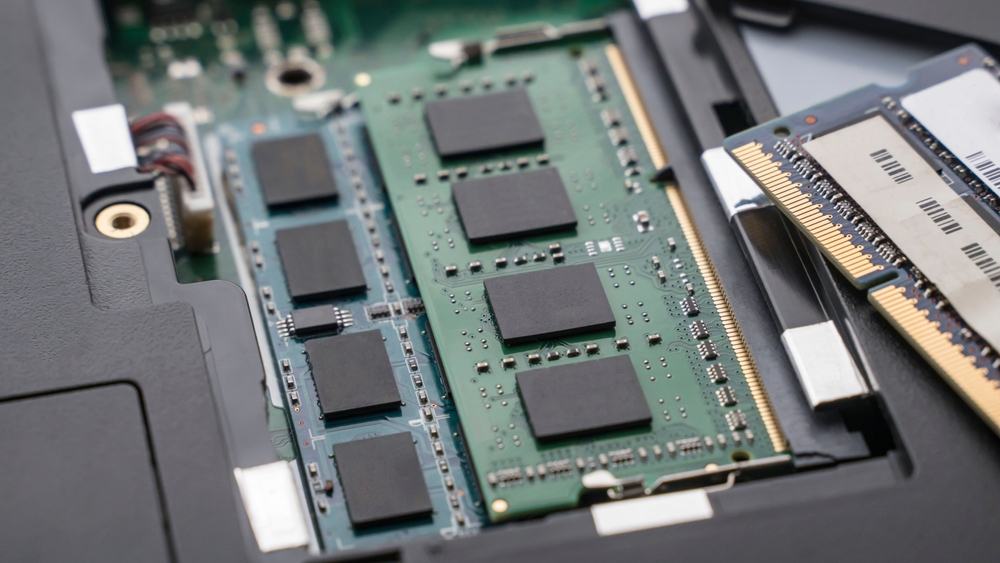
At its core, computer memory is the space where a computer stores data temporarily or permanently. Without it, a system can’t perform even the most basic tasks. From booting up an operating system to launching an application, computer memory plays an indispensable role.
This guest post dives deep into the world of computer memory, covering its types, architecture, working principles, performance metrics, and its place within broader IT hardware systems.
The Role of Computer Memory in Computer Hardware
Computer memory interacts directly with the central processing unit (CPU) and the storage system, functioning as a bridge that allows data to move quickly. Within the broader context of computer hardware, memory ensures that operations are carried out swiftly and smoothly.
Key Responsibilities of Computer Memory:
- Storing instructions required by the CPU
- Holding data temporarily while tasks are performed
- Improving processing speed by minimizing access times
- Supporting multitasking without system crashes
As a critical part of computer hardware, memory contributes significantly to the overall IT hardware ecosystem, enabling efficient and stable computing environments.
Types of Computer Memory
Understanding the various types of computer memory helps in making informed choices when configuring or upgrading IT hardware systems. Broadly, memory can be classified into two categories: Primary Memory and Secondary Memory.
1. Primary Memory
Also known as main memory, this includes:
RAM (Random Access Memory)
- Volatile memory, loses data when power is off
- Essential for multitasking
- Comes in types like DDR3, DDR4, and DDR5
ROM (Read-Only Memory)
- Non-volatile, retains data permanently
- Stores firmware like BIOS
- Crucial for booting operations
Cache Memory
- High-speed memory located close to the CPU
- Stores frequently accessed data
- Comes in L1, L2, and L3 levels
2. Secondary Memory
This is used for long-term data storage:
Hard Disk Drives (HDDs)
- Magnetic storage
- Economical and reliable
- Slower read/write speeds compared to SSDs
Solid State Drives (SSDs)
- Flash-based memory
- Faster and more durable
- Ideal for modern high-speed applications
Volatile vs Non-Volatile Memory
A significant distinction in computer memory is whether it is volatile or non-volatile.
Volatile Memory
- Data is lost when power is removed
- Examples: RAM, Cache
- Optimized for speed and performance
Non-Volatile Memory
- Retains information after power loss
- Examples: ROM, SSDs, HDDs
- Ideal for data storage and retrieval
Understanding this distinction is key when selecting memory types for specific computer hardware tasks in an IT hardware environment.
Cache Memory: The Hidden Speed Booster
Though often overlooked, cache memory is a powerful component that boosts performance by storing frequently used instructions close to the CPU.
Types of Cache Memory:
- L1 Cache: Closest to the CPU, fastest but smallest
- L2 Cache: Slightly slower, larger than L1
- L3 Cache: Shared among cores, enhances multiprocessing
By reducing the time it takes to fetch instructions, cache memory plays a vital role in enhancing system responsiveness and is thus a critical component in modern IT hardware.
Understanding DRAM and SRAM
Two primary forms of RAM used in computing today are Dynamic RAM (DRAM) and Static RAM (SRAM).
DRAM (Dynamic RAM)
- Most common form of RAM
- Needs to be refreshed thousands of times per second
- Cost-effective and widely used in PCs and laptops
SRAM (Static RAM)
- Faster and more expensive
- Doesn’t require refreshing
- Used mainly in cache memory
Selecting the right type of RAM depends on your computing needs—SRAM for speed, DRAM for storage volume within budget.
Generations of DDR RAM: DDR3, DDR4, DDR5
Over time, DDR (Double Data Rate) RAM has evolved to offer better speeds, efficiency, and capacity.
DDR3
- Introduced in 2007
- Max speed up to 2133 MT/s
- Lower power consumption than DDR2
DDR4
- Became standard around 2014
- Max speed up to 3200 MT/s and beyond
- Offers better energy efficiency
DDR5
- Released in 2020
- Supports speeds over 4800 MT/s
- Designed for high-performance computing and gaming
When upgrading your computer memory, matching the correct DDR version with your motherboard is vital for optimal performance in computer hardware.
ECC vs Non-ECC Memory
Another important consideration in selecting computer memory is error checking.
ECC (Error-Correcting Code) Memory
- Detects and corrects data corruption
- Commonly used in servers and workstations
- Increases system reliability
Non-ECC Memory
- Faster and cheaper
- Common in home desktops and laptops
For IT hardware in mission-critical environments, ECC memory is often preferred due to its error-resilient nature.
Memory Channels and Bandwidth
Modern systems use multiple memory channels to improve bandwidth.
Single Channel vs Dual Channel vs Quad Channel:
- Single Channel: Basic, lowest bandwidth
- Dual Channel: Doubles bandwidth using paired modules
- Quad Channel: Further improves performance, used in workstations
Memory bandwidth directly influences the speed at which data is read or written, making channel configuration an essential factor in system design.
How Computer Memory Impacts System Performance
From faster boot times to smoother multitasking, computer memory plays a pivotal role in system performance.
Performance Metrics Affected by Memory:
- System Boot Time
- Application Load Speed
- Multitasking Efficiency
- Gaming and Graphics Rendering
Without adequate memory, even the most powerful computer hardware can suffer from performance bottlenecks.
Memory in Different Computing Environments
Home Computers
- 8–16GB RAM is typical
- SSDs becoming standard
- Ideal for daily tasks and light gaming
Gaming Systems
- Minimum 16GB RAM recommended
- High-speed DDR4 or DDR5
- Emphasis on GPU and memory sync
Workstations
- 32GB to 128GB RAM
- ECC memory for reliability
- SSDs and RAID storage for speed and redundancy
Servers
- ECC and registered memory used
- Optimized for uptime and stability
- May use terabytes of memory in data centers
Future of Computer Memory in IT Hardware
As IT hardware evolves, so does computer memory technology.
Emerging Trends:
- 3D XPoint Memory: Combines speed of RAM with storage persistence
- MRAM (Magnetoresistive RAM): Non-volatile with high endurance
- Optane Memory: Intel’s hybrid solution for faster data access
These innovations aim to bridge the gap between traditional storage and memory, revolutionizing how data is accessed and processed in future computer hardware systems.
Upgrading Computer Memory: What You Should Know
If you’re planning to upgrade your system memory, here are some key tips:
1. Check Compatibility
- Match memory type (DDR3, DDR4, etc.)
- Verify motherboard specs
2. Consider Capacity
- At least 16GB for gaming or video editing
- 32GB+ for professional applications
3. Evaluate Speed
- Higher MHz for better performance
- Consider overclocking potential
Upgrading memory is one of the easiest and most cost-effective ways to enhance any computer hardware setup.
Best Practices for Managing Computer Memory
Efficient memory management ensures smooth computing and system longevity.
Tips:
- Use memory diagnostic tools regularly
- Clear unnecessary startup programs
- Close unused tabs and background apps
- Use virtual memory settings effectively
For businesses reliant on IT hardware, proper memory maintenance can reduce downtime and extend hardware life.
How to Troubleshoot Common Memory Issues
Symptoms of faulty computer memory can include:
- Frequent crashes
- Application errors
- Blue screen of death (BSOD)
Troubleshooting Steps:
- Use MemTest86 or Windows Memory Diagnostic
- Reseat memory modules
- Test with known working RAM
Quick action can prevent data loss and protect your IT hardware investments.
Computer Memory and Virtualization
In cloud environments and virtual machines (VMs), memory allocation becomes even more critical.
Memory in VMs:
- Memory is allocated dynamically
- Overcommitment can cause crashes
- ECC memory is highly recommended
Efficient memory use in virtualized environments ensures high performance and system stability across the IT hardware stack.
Environmental Impact and Green Memory Solutions
Eco-conscious computing is on the rise, and computer memory has a role to play.
Green Memory Innovations:
- Low-voltage memory (LPDDR4, LPDDR5)
- SSDs with energy-efficient controllers
- Memory with recyclable materials
Choosing green computer hardware options can reduce your carbon footprint without sacrificing performance.
Conclusion
From desktops and laptops to servers and data centers, computer memory is the unsung hero of modern IT hardware. Understanding its types, functionalities, and performance impact is essential for both casual users and IT professionals.
Whether you’re upgrading a personal computer or managing a network of enterprise systems, knowing how computer memory functions within the broader realm of computer hardware helps in building faster, more efficient, and reliable systems.
As technologies like DDR5, 3D XPoint, and MRAM emerge, the future of memory is set to transform how we experience computing. Stay informed, choose wisely, and optimize your memory usage to unlock the full potential of your IT hardware infrastructure.